Overview #
The Audit Tool is used to create a group of events for the purpose of recording audit or inspection findings and creating corrective actions. Each Audit consists of a table of Audit Finding Events, or corrective actions. These events behave the same as other events and appear on the Open Events table, but they can also be found within the Audit Findings table.
Audit Basics: #
- Audits can be found under the Tools tab in the menu (Tools > Audits).
- Only Directors and Managers are able to edit, create, and view Audits.
How to create an Audit: #
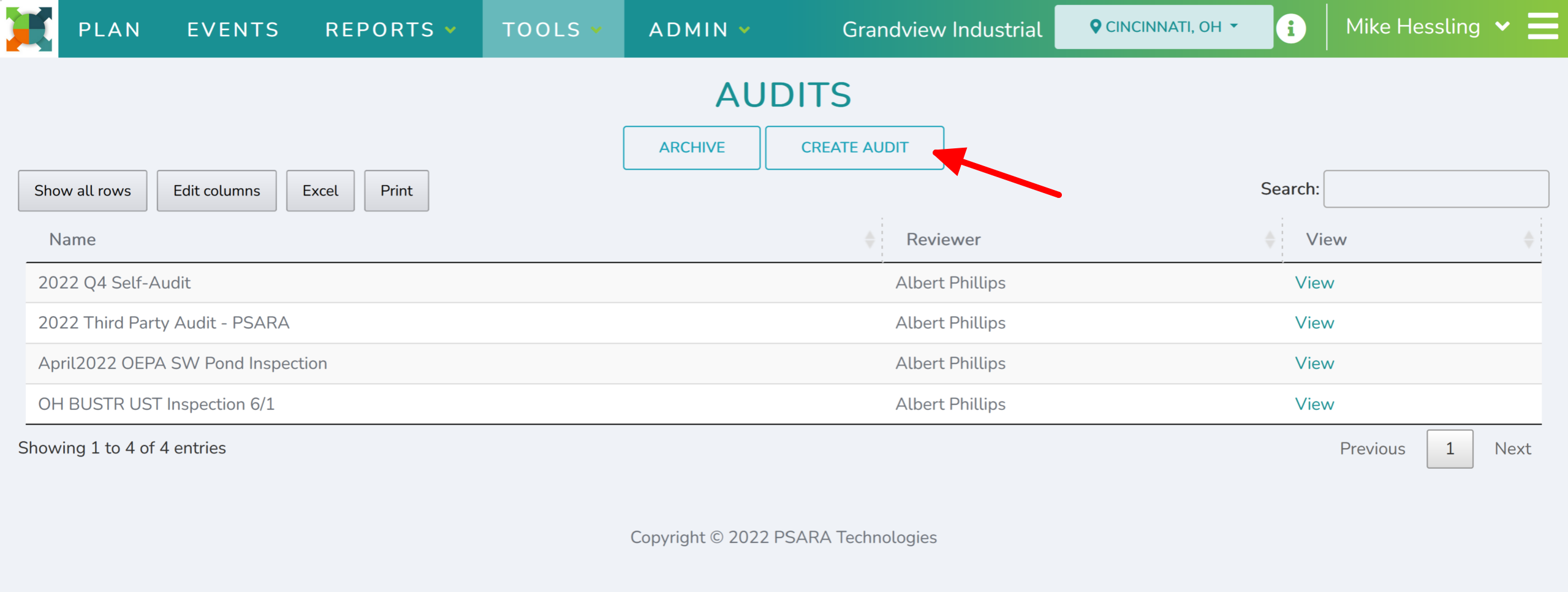
1. Open the Audit tool
- After accessing the Audit tool, located under the ‘Tools’ tab, select the ‘Create Audit’ button
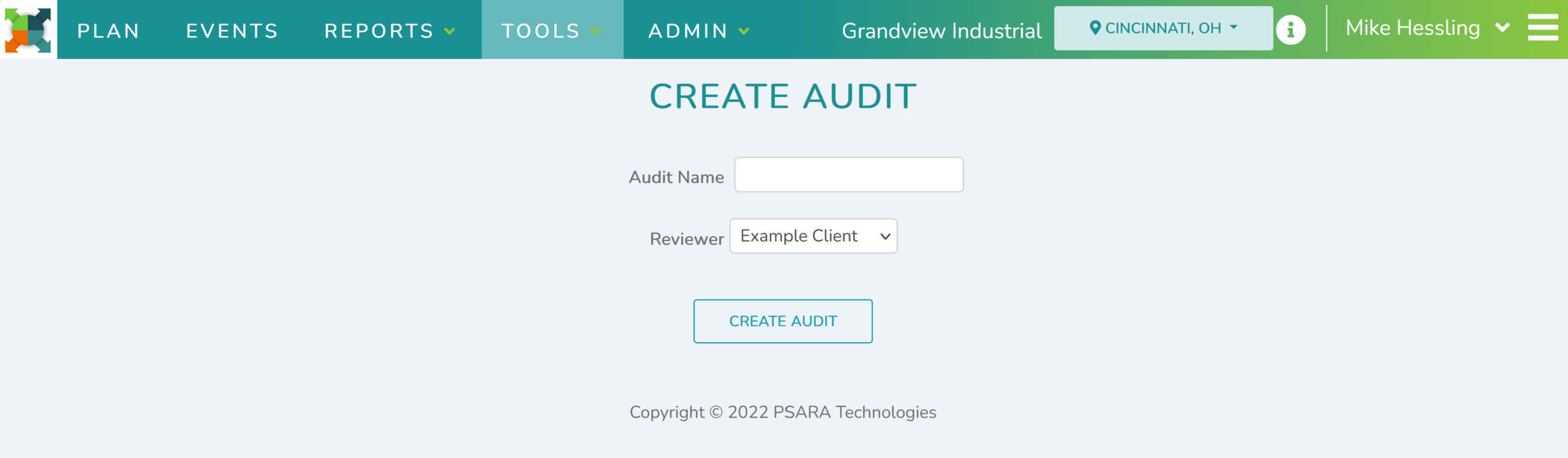
2. Name Audit and Assign reviewer
- Enter an Audit Name and select a Reviewer, then click ‘Create Audit’ to begin recording findings and mapping out corrective actions.
3. Add findings (create corrective-action Events)
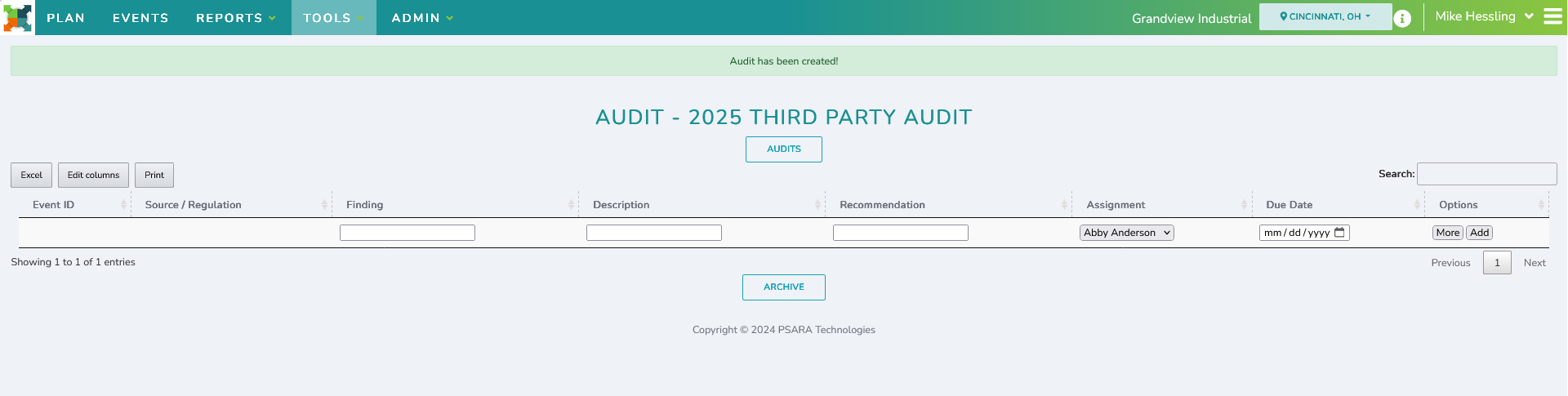
- To add a new finding to your Audit, enter finding details into the following columns:
- Finding – Short title for issue found
- Description – What was observed/discovered
- Recommendation – Corrective action that needs to be made
- Assignment – user responsible for Event
- Due Date
4. Create or Review Audit Events
- Select ‘Add’ to create the Audit Finding Event.
- Or select ‘More’ to review/edit details before or after creation, including:
-
- Activity & Description
- Assignment & Due Date
- Notifications
- Area & Type
- Regulation & Citation
- Attachments & Comments
- Event History
- You can also click the Pencil icon under Options to edit.
-
Tip: Attach photos, inspection notes, and other supporting files under Attachments to keep the record complete.

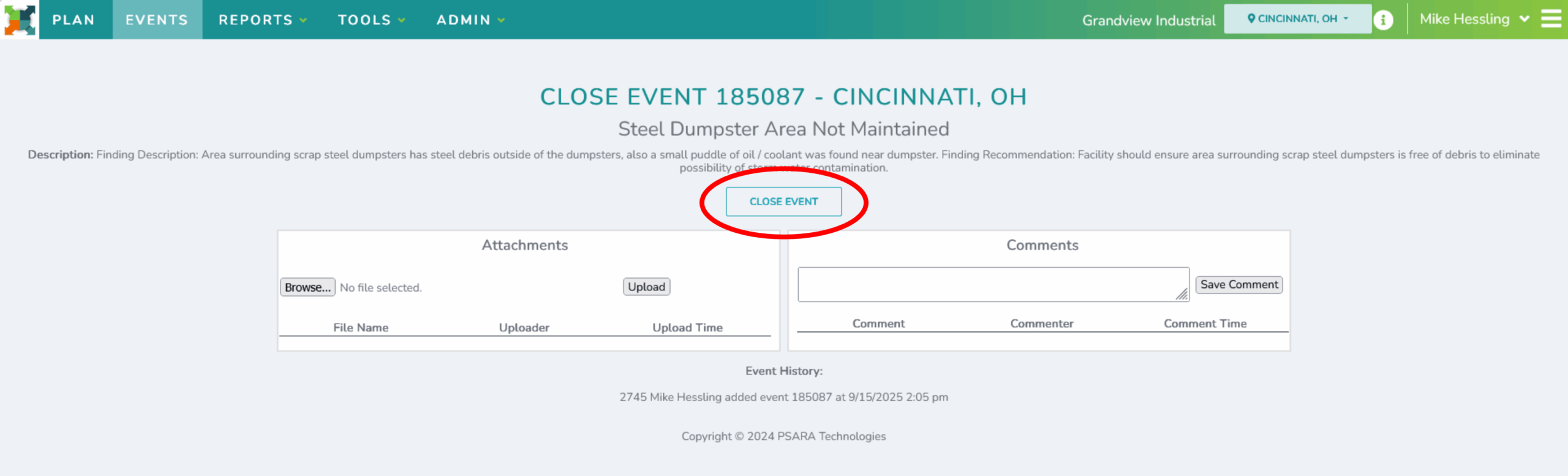
5. Once added, Audit Finding Events appear in the Open Events table for the assigned user and in the Audit Findings table for that Audit.
- They are closed in the same way as any other Event.
 #
#
Review Audit Finding Closed Events: #
After a finding is closed in Open Events (and, if enabled, approved in the Holding Table), it will be available for review under the Audit.
- If additional work is required, you can Reopen the Event by selecting ‘Reopen’ button in the Options column.
