Overview #
The Management Plan is the central scheduling engine of PlanTRAK, responsible for creating and assigning recurring tasks – called Events – based on pre-defined compliance requirements. Each facility has its own Management Plan, which contains a list of Plan Items. Each row in the Management Plan table corresponds to a single Plan Item, making it the core structure for tracking and managing ongoing compliance activities.
A Plan Item represents a recurring task that is automatically scheduled according to its frequency, initial due date, and assigned user. As due dates approach, assigned users receive automated email notifications prompting them to complete the task. If an Event is not closed by its due date, it is marked as overdue.
How to create a new Management Plan Item: #
1. Navigate to the ‘Plan’ tab located in the top task bar
2. Select the ‘Add Item’ button
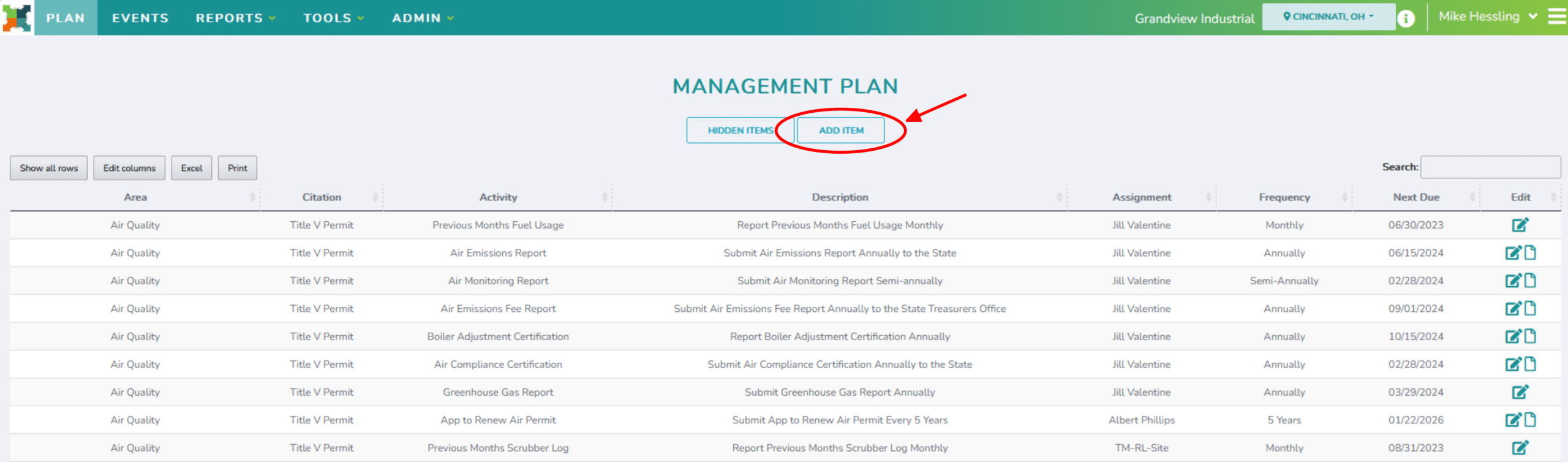
3. To create a new Plan Item, users must populate a number of various fields:
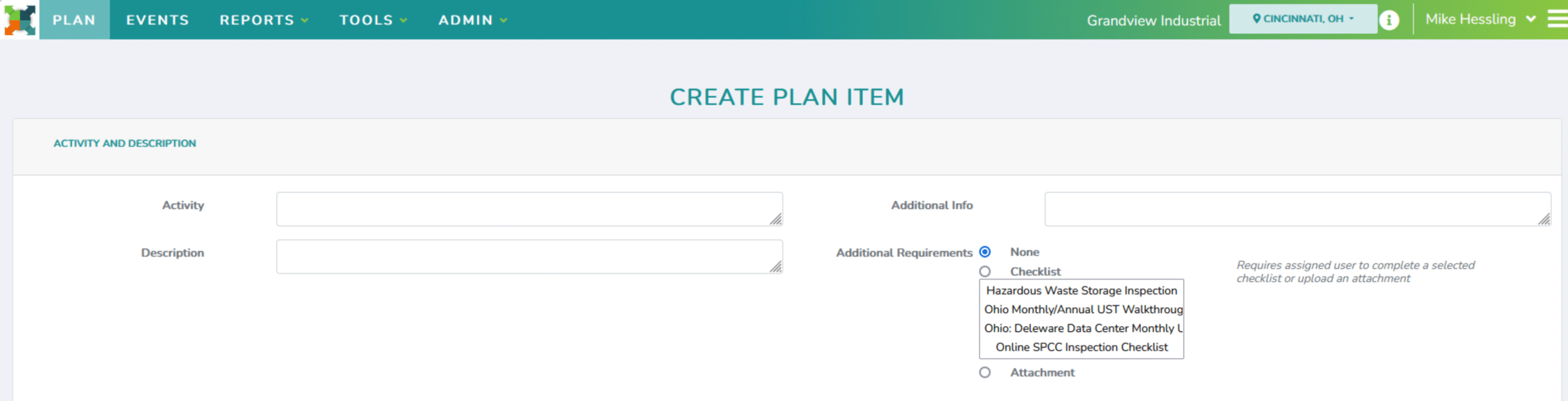
- Activity: A short title for the task
- Description: A brief summary of what needs to be completed
- Additional Information: Helpful context or instructions
- This information will appear in email notifications and on the Event view page
- Additional Requirement: Optionally require a checklist to be completed or a document to be uploaded before closing the Event

- Assignment: The user responsible for completing the event
- Next Event to be Generated: The due date for the next scheduled event
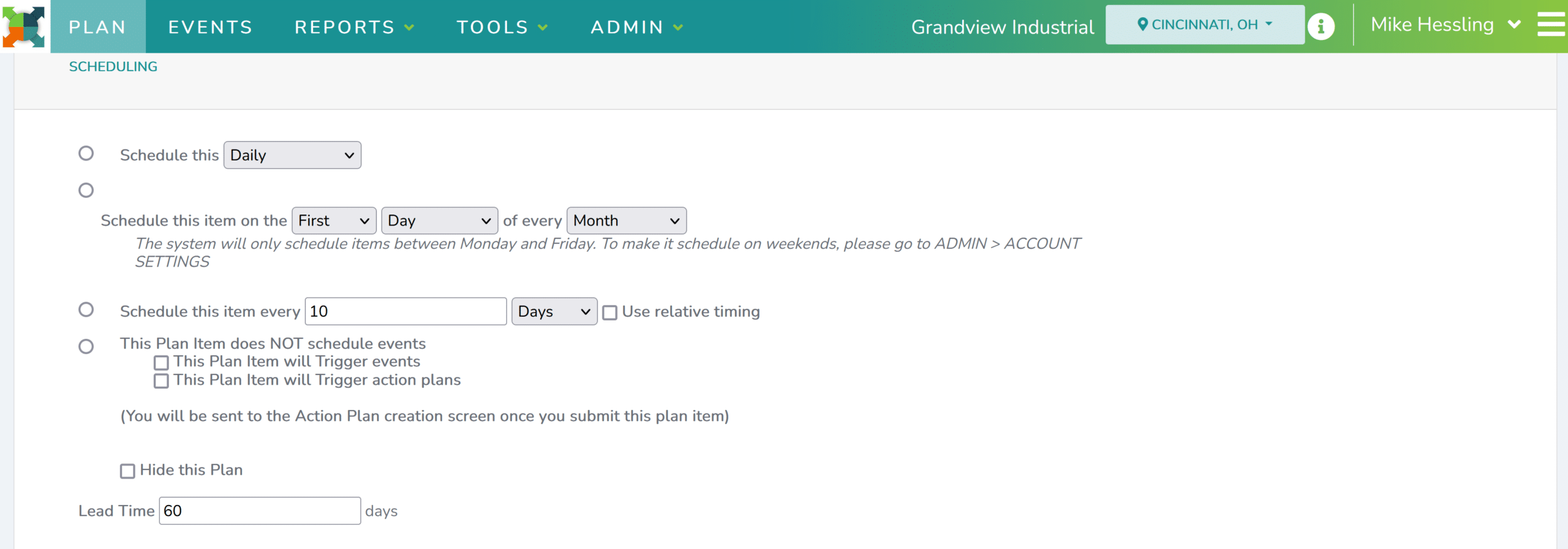
- Scheduling: There are various options for how frequently and on which day the Events are created
-
- For example, events can be scheduled for the last day of the month, the first Monday of every month, every number of days, and so on.
- Relative Timing: schedule an event every number of days, weeks, months, or years based on when the last event was completed.
- Example: You have an event that needs to be completed once every 365 days. Select “Schedule this item every ‘365 Days’ and select the ‘Use relative timing’ checkbox.
- If the first event is completed on 4/4/2020, the next due date will be on 4/4/2021.
- Example: You have an event that needs to be completed once every 365 days. Select “Schedule this item every ‘365 Days’ and select the ‘Use relative timing’ checkbox.
- Other Scheduling Options:
- Deactivating/Hiding Plan Items: Select ‘This Plan Item Does NOT Schedule Events’ to stop scheduling new tasks.
- If you would also like to Hide the Plan Item from the Management Plan Table, additionally select the ‘Hide this Plan’ button.
- Triggered Events/Action Plans: This option only creates Events when you select the ‘Trigger’ button on the Management Plan Table. Once triggered, the Plan Item will create an Event or an Action Plan (a series of Events)
- Deactivating/Hiding Plan Items: Select ‘This Plan Item Does NOT Schedule Events’ to stop scheduling new tasks.
- Lead Time: Indicates how many days in advance the Event will become available to the assigned user
-

- Notification Lists: lists of users to be added to email notifications and the number of days from the due date the notifications are sent
- There are four notification lists: Reminder Notify, Warning Notify, Overdue, and Overdue Reminder.
- The assigned user is automatically added to all Notification Lists.
- Users added to a Notification List will automatically be added to the following Notifications Lists. For example, a user that is added to the Warning Notify list will receive the Warning Notifications, Overdue Notifications, and Overdue Reminder Notifications.
- If you would like to remove the Reminder or Warning Notifications for a given Plan Item, type ‘0’ into the ‘days’ input box for that Notification List.
- Overdue Reminders are system-wide and typically sent 5 days after the due date
-
-
- Quick Tip: Hold the ‘Ctrl’ key down to select/deselect multiple users on the Notification Lists
-
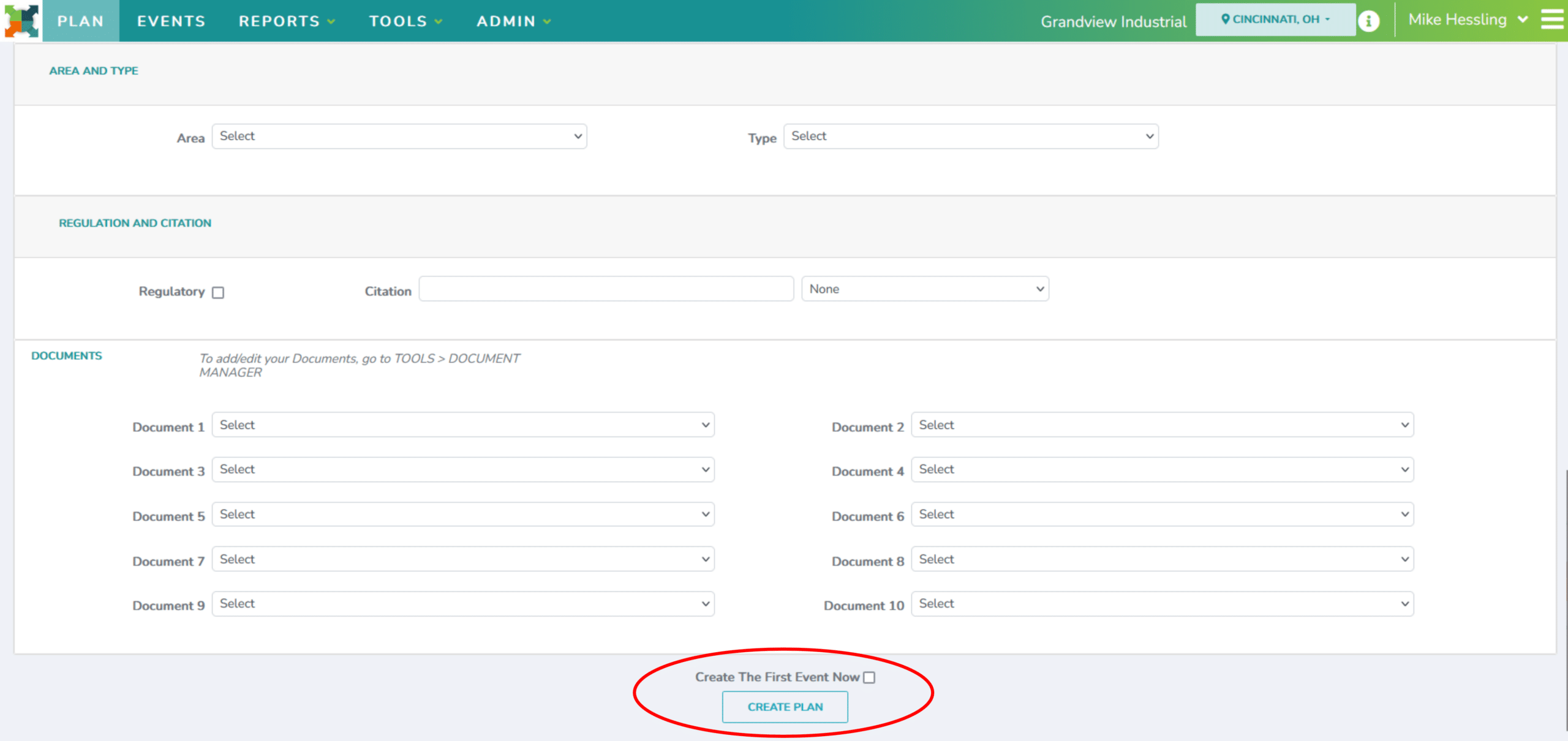
- Area & Type:
- Area indicates the Compliance Area associated with the Plan Item (e.g., Air Quality, Storm Water)
- Type indicates the type of task that needs to be completed (e.g., Sampling Event, Permit Application)
- Regulation & Citation: Indicate if a plan item is part of regulatory requirement and allows you to reference why this plan item is required
- Documents: Reference or background documents that can be attached to events created from the Plan Item
- Attach up to 10 reference documents that will be available on each generated Event. Select documents from the drop down.
4. Select the ‘Create Plan’ button to create a new plan item
- Select ‘Create The First Event Now’ if plan item is ready to be assigned and implemented.
How to Stop Scheduling a Plan Item? #
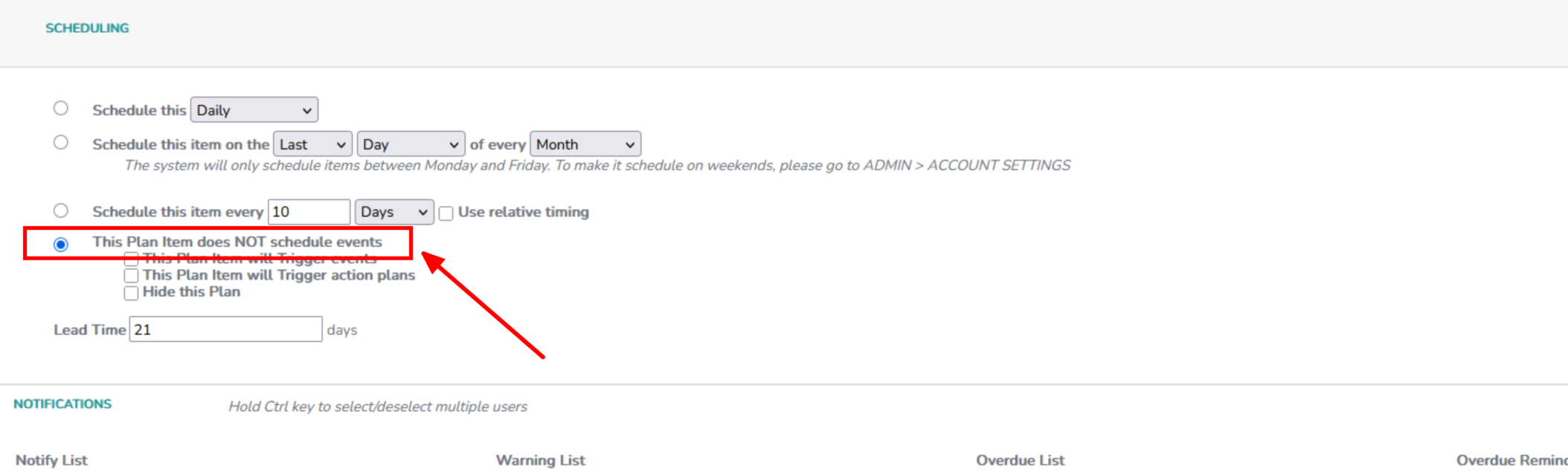
When updating a Plan Items that no longer need to be scheduled, navigate to the Scheduling section within the Plan Item. Select ‘This Plan Item Does NOT Schedule Events”.
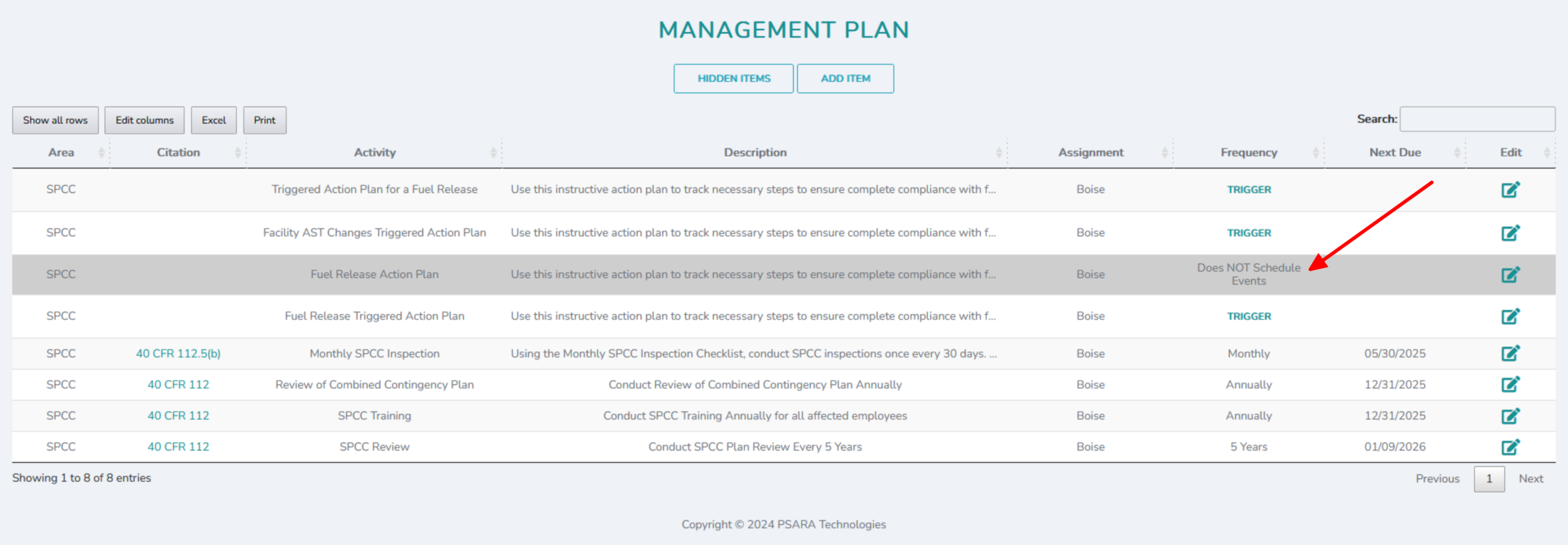
This will ensure that no new Events will be created for this Plan Item going forward and will grey out the Plan Item in the Management Plan Table.
How to Hide a Plan Item? #
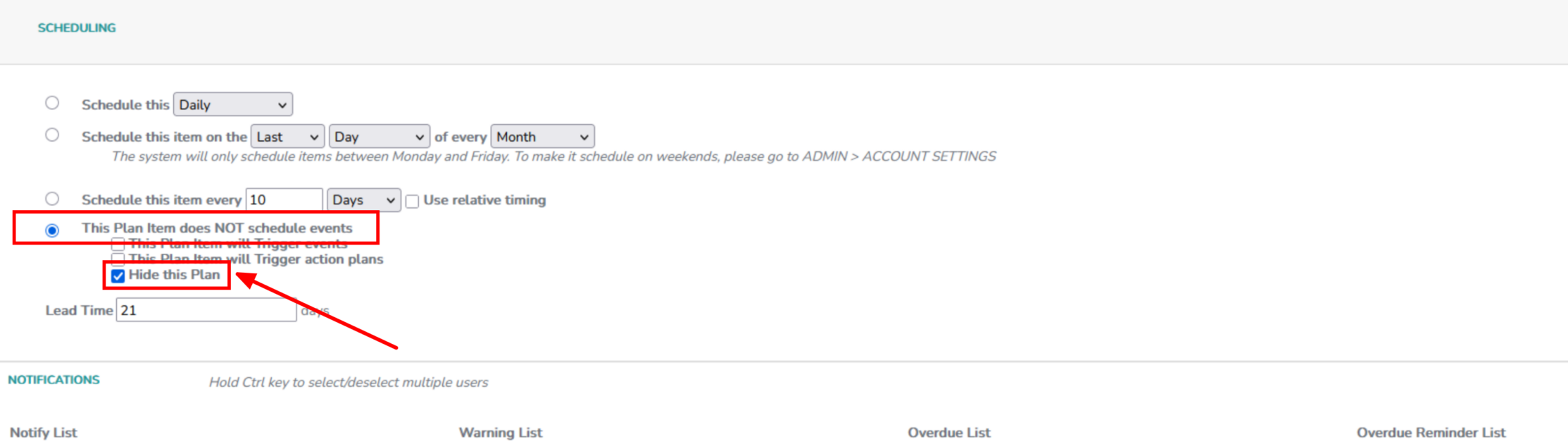
To hide Plan Items from the Management Plan Table, the Plan Item must first be set to “This Plan Item Does NOT Schedule Events” under the Scheduling section.
After turning off scheduling for the Plan Item, select the box labeled “Hide this Plan”. This will remove the Plan Item from view in the Management Plan Table while retaining all historical data for record-keeping purposes.
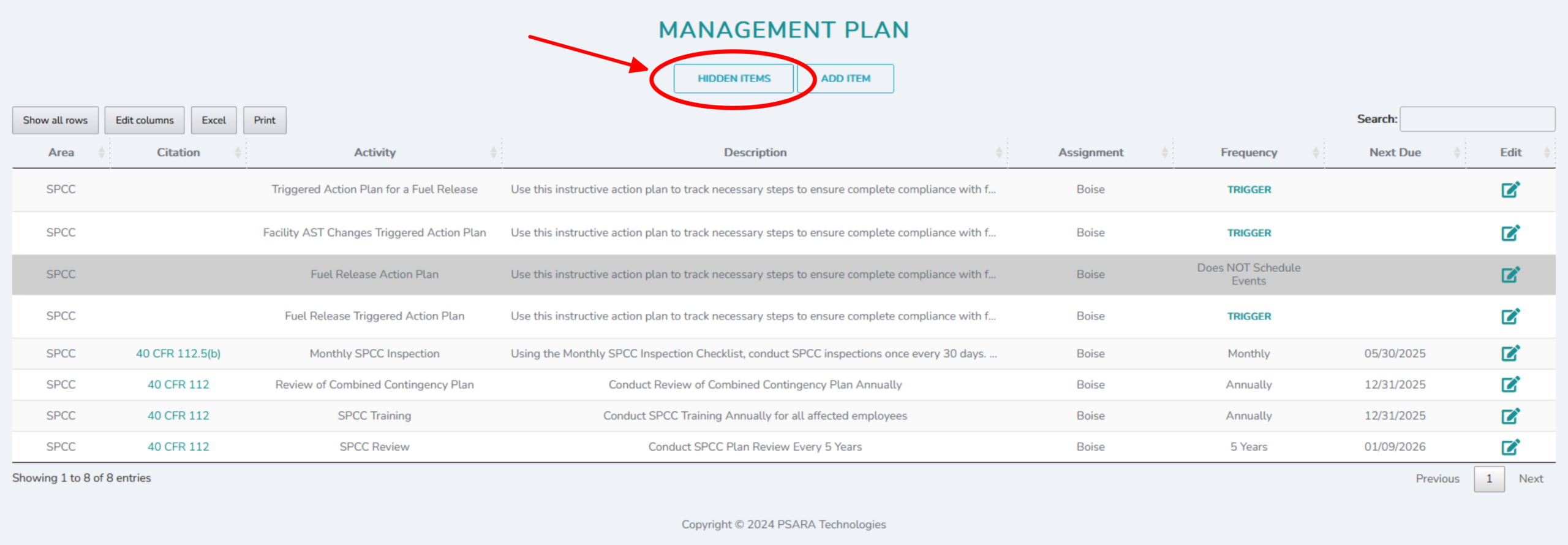
Though Hidden Plan Items are no longer listed on the Management Plan Table, they can still be accessed and viewed via the Hidden Items button on the Management Plan page.
*Directors and Managers are the only ones who can view Management Plans. Only Directors can edit and create Management Plan Items.